
Monitoring in SAP Integration Suite can become quite complex when you are managing many integration flows and processing thousands of messages within a given period. The key question is: how do you efficiently filter and search for messages—whether for analytical purposes, monitoring, or error analysis?
Of course, SAP provides some standard search parameters such as Message ID, Correlation ID, and even the option to filter messages by a specific time period. However, these parameters are mostly technical and not directly connected to the business context.
For example, how can you search for all Sales Order messages, all Delivery Documents, or even find messages based on a specific Sales Order Number or Delivery Number? What if you need to filter by sender or target system names? These kinds of business-friendly searches are not possible without customization in SAP Integration Suite.
This is where standard and custom header parameters come into play. By leveraging them, you can enrich your monitoring capabilities with business-relevant information, making message tracking and troubleshooting much more efficient.
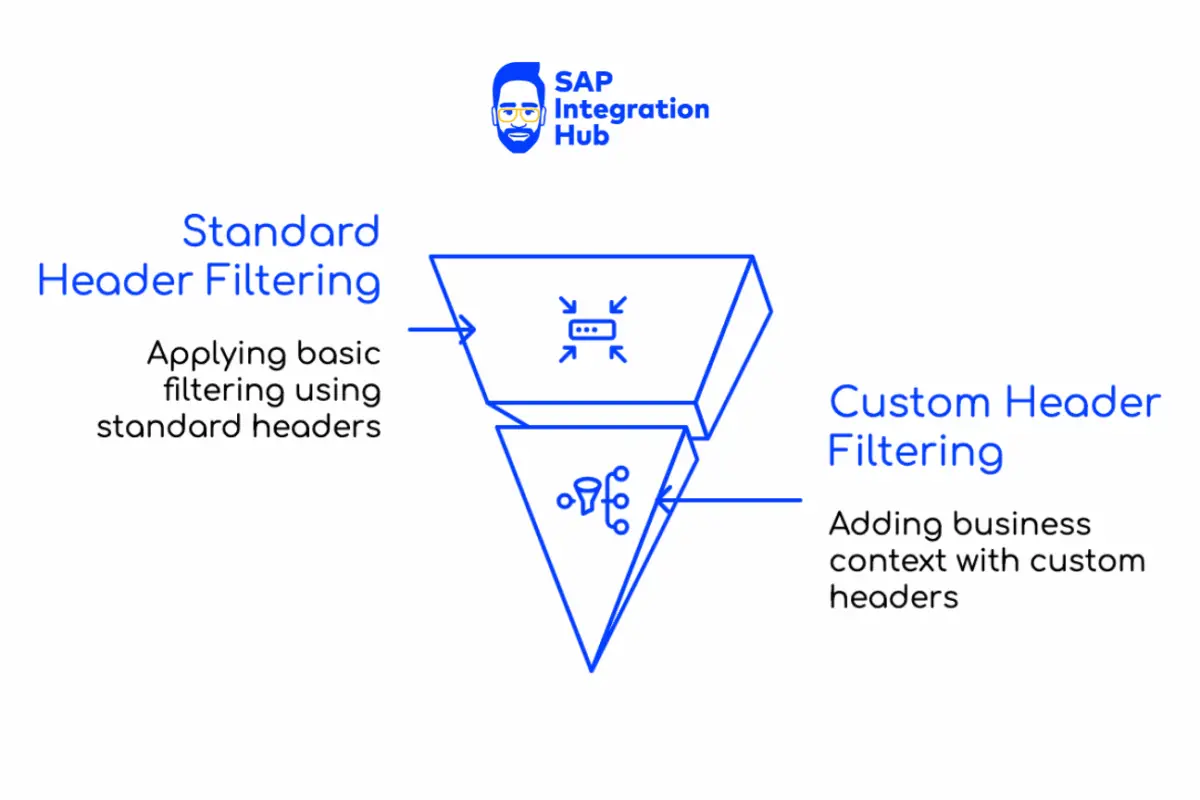
Standard Header Parameters Available to Filter Messages
SAP provides a standard set of header parameters in the exchange envelope. Some of these standard parameters can be leveraged to add custom filter options in the Message Monitor.
Here are the standard parameters you can use:
- Message ID – The unique identifier that is associated with the message processing log (MPL).
- Correlation ID – The identifier used to correlate different messages with each other that are processed jointly in the context of an integration scenario.
- Application Message ID – Identifier set by a dedicated header (SAP_ApplicationID).
- Sender – Identifier set by a dedicated header (SAP_Sender).
- Receiver – Identifier set by a dedicated header (SAP_Receiver).
- Custom Status – Identifier set by a dedicated exchange property (SAP_MessageProcessingLogCustomStatus).
- Application Message Type – Identifier set by a dedicated header (SAP_MessageType).

Message ID and Correlation ID are quite technical and form the basis of the message processing log, so we will leave them as they are. Of course, you can still use these two values to filter messages.
You can assign values to any of these header parameters during integration processing at runtime, and later use those values to filter messages in the Integration Monitor.
Sample Integration Scenario to Demonstrate Message Monitoring Customization
To demonstrate this, let’s imagine we have an interface that processes product master data from your PLM system to SAP S/4HANA. For example, you may want to filter messages based on the Product ID, Catagory ID, Supplier ID or other business-related data—information that is part of the actual message payload.
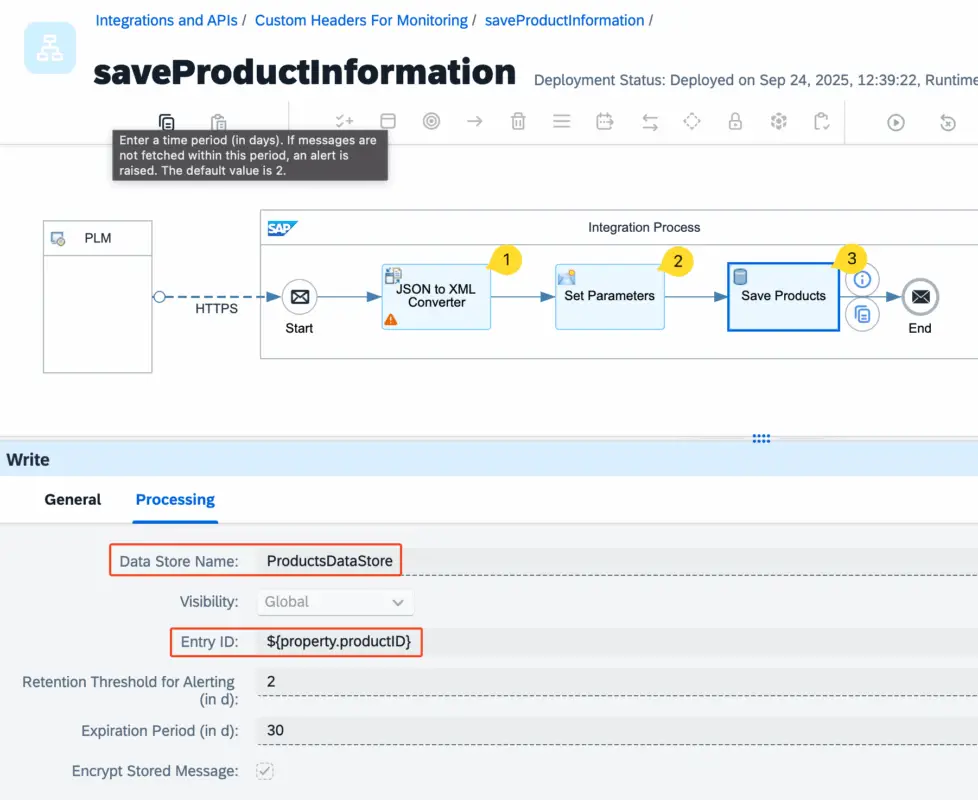
For demonstration purposes, we will simply save the product information in a data store, using the data store entry ID as the Product ID.
{
    "value": [
        {
            "ProductID": 51,
            "ProductName": "Gravad lax",
            "SupplierID": 20,
            "CategoryID": 9,
            "QuantityPerUnit": "12 - 500 g pkgs.",
            "UnitPrice": 26.0000,
            "UnitsInStock": 11,
            "UnitsOnOrder": 50,
            "ReorderLevel": 25,
            "Discontinued": false
        }
    ]
}
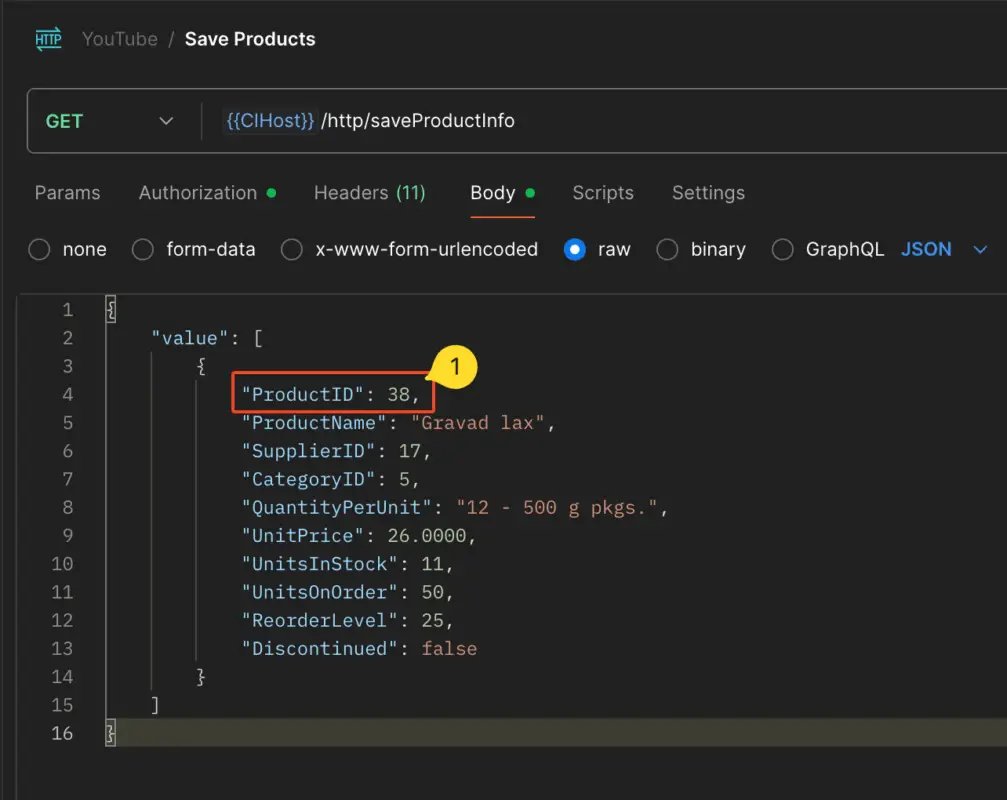
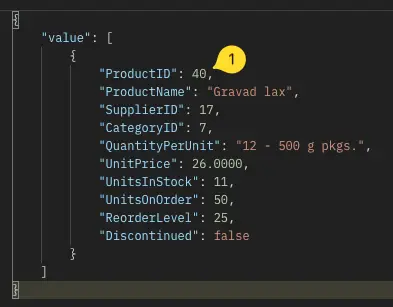
Here is the incoming JSON message from the PLM system.
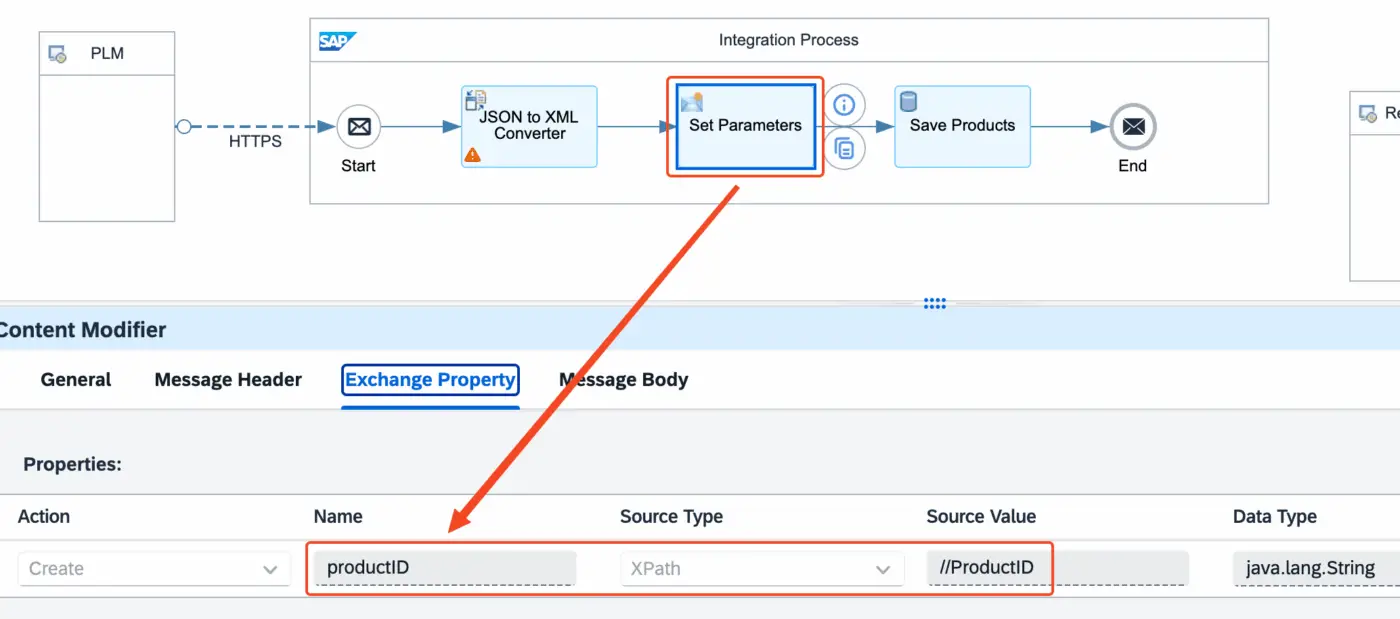
In the integration flow, we will first convert the JSON message to XML, and then extract the Product ID from the payload to use as the entry ID in the data store.
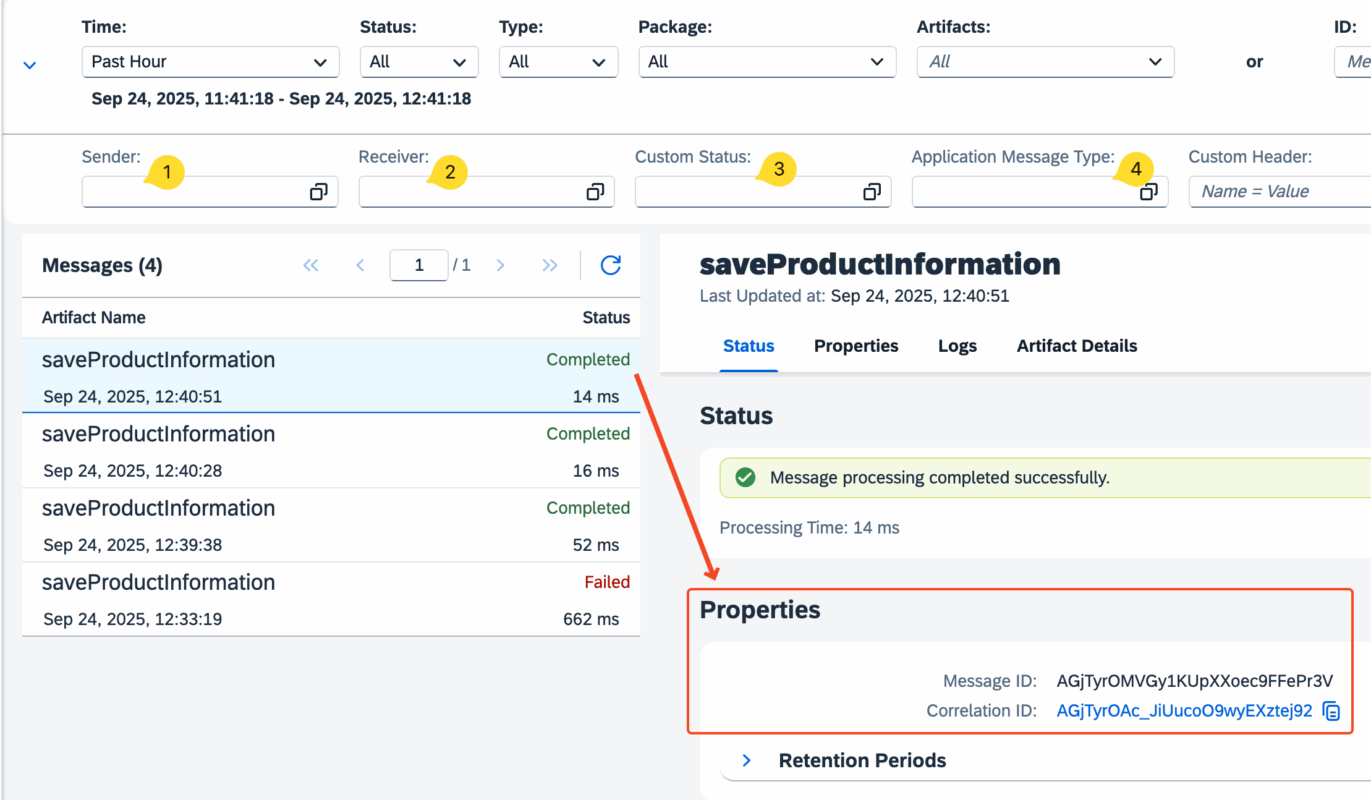
Now let’s process some messages through the interface. If you go to the Message Monitor, you will notice that in the Properties section you only see the Message ID and Correlation ID, and nothing else.
But what if you need to search for messages based on the Product ID? In this case, we want to filter messages using the Product ID that comes in the incoming payload.
Using Standard Header Parameter to Filter Messages
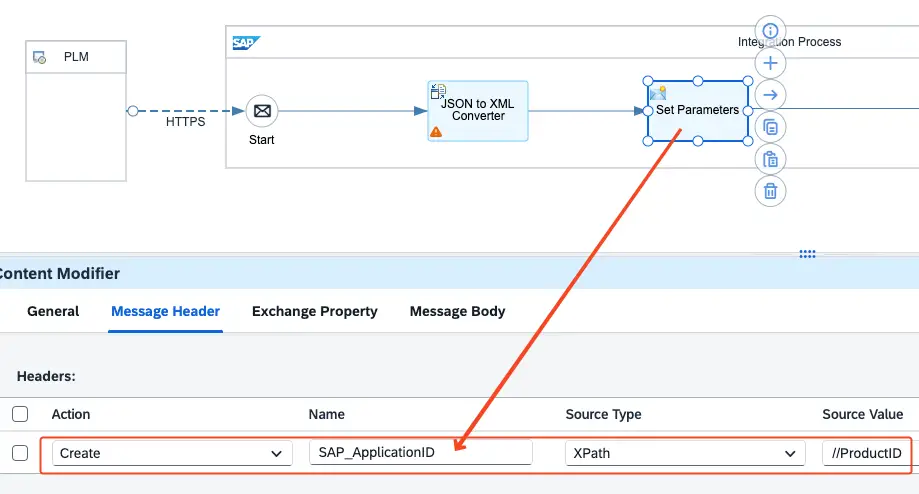
To filter messages based on the business object ID, we need to set its value in the standard header parameter SAP_ApplicationID. We can achieve this by extracting the Product ID from the payload and assigning it to this parameter.
Use a Content Modifier step to set the value of the header parameter SAP_ApplicationID.
Now, let’s process another product and see the message monitor.
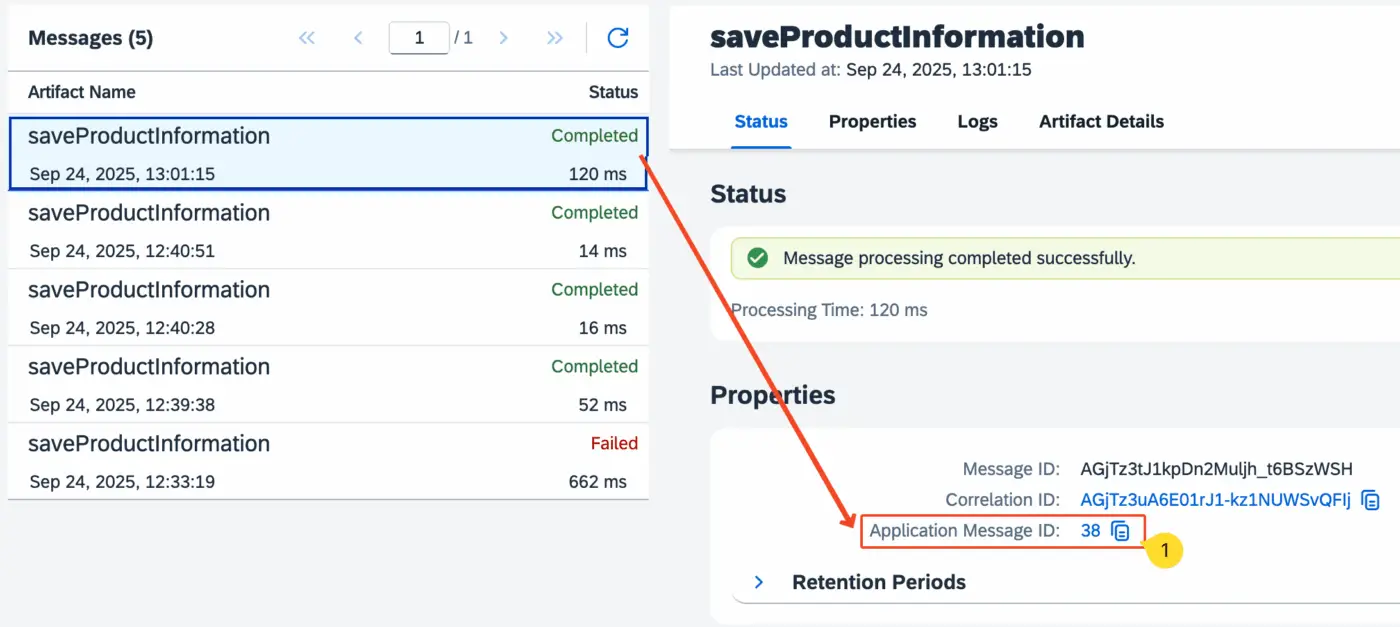
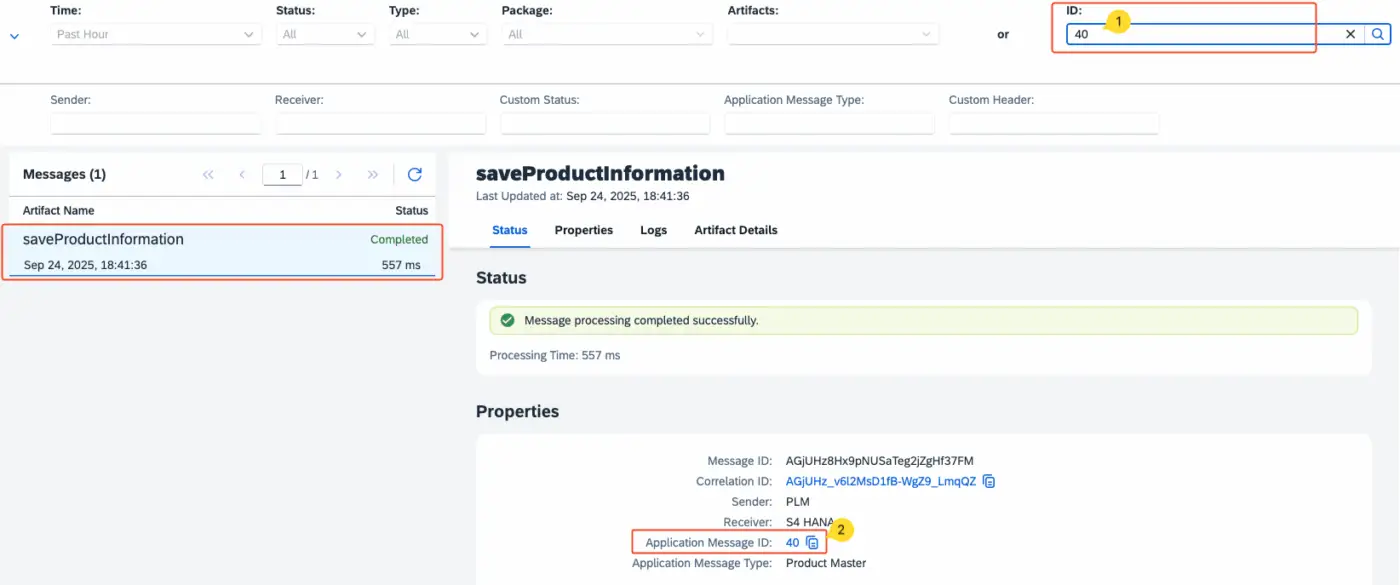
Now you can not only view the business document number processed by the message without digging into the payload, but also use this value to filter messages. In the standard filter “ID”, you can now enter this value to quickly find the relevant messages.
Not just SAP_ApplicationID — let’s set all the other standard parameters as well, such as SAP_Sender, SAP_Receiver and SAP_MessageType. We will set the sender system as PLM, the receiver system as S/4HANA, and the application type as “Product Master”.
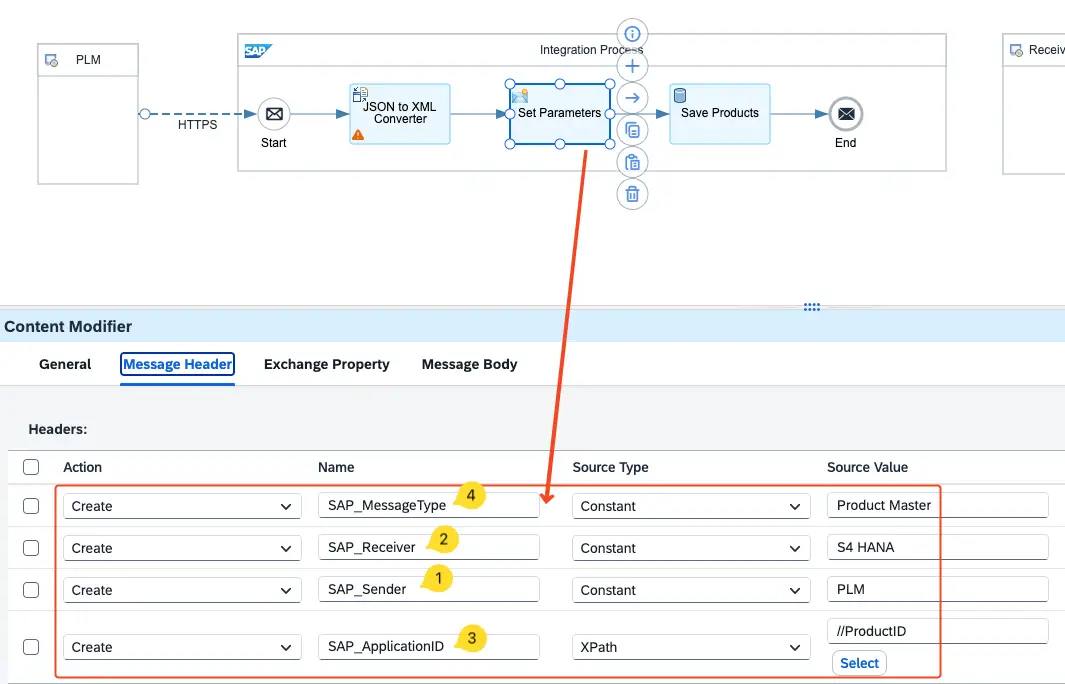
Now process a message and notice that all the values we set using the Content Modifier in the iFlow are visible in the Properties section of the Message Monitor.
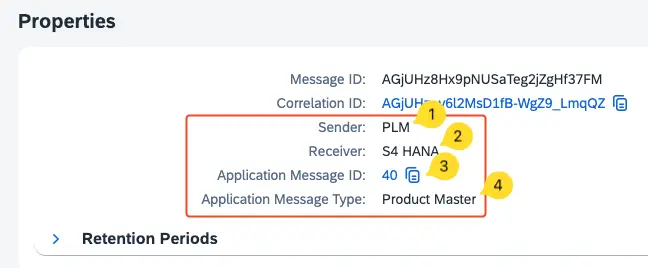
Now you can use any of these filter criteria to filter messages.

For example, let’s filter the messages for Product ID 40. You can use the ID field in the Message Monitor to do this. In the same way, you can use all other standard parameters.
Now, imagine having many interfaces and needing to filter messages based on sender system, target system, document type, etc. All of this is possible if you set the values correctly for these standard parameters during runtime.
Using Additional Filter Criteria with Custom Header Properties
Now we have used all the standard parameters available for additional filtering. Let’s imagine we have another key data field we want to use to filter messages in SAP Integration Suite.
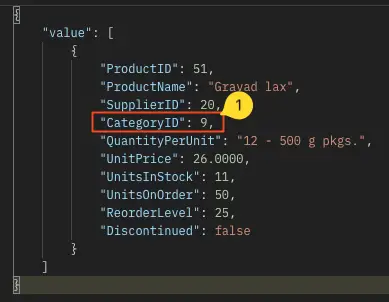
For example, suppose we want to filter messages by the incoming payload’s data field “CategoryID”. This is where custom header properties come in handy.
We will add a new custom header parameter with the value of CategoryID extracted from the payload.
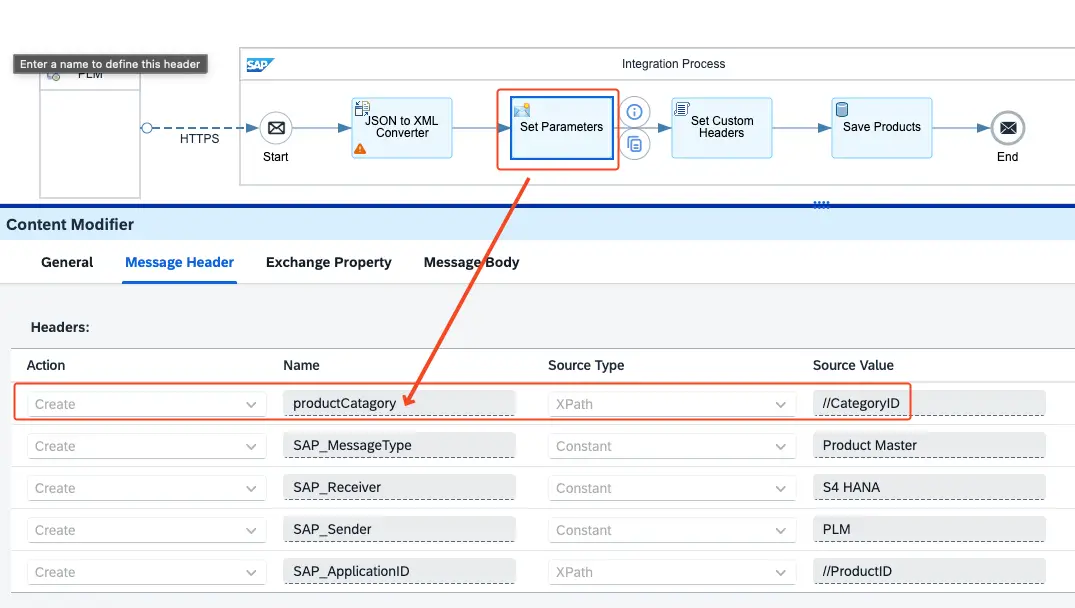
To set a custom header parameter, we need to create a Groovy script.
First, we will extract the required information from the payload—in this example, the CategoryID. We will use an XPath expression with a Content Modifier to achieve this.
Then we have to set a new custom header property with the value of the category ID.
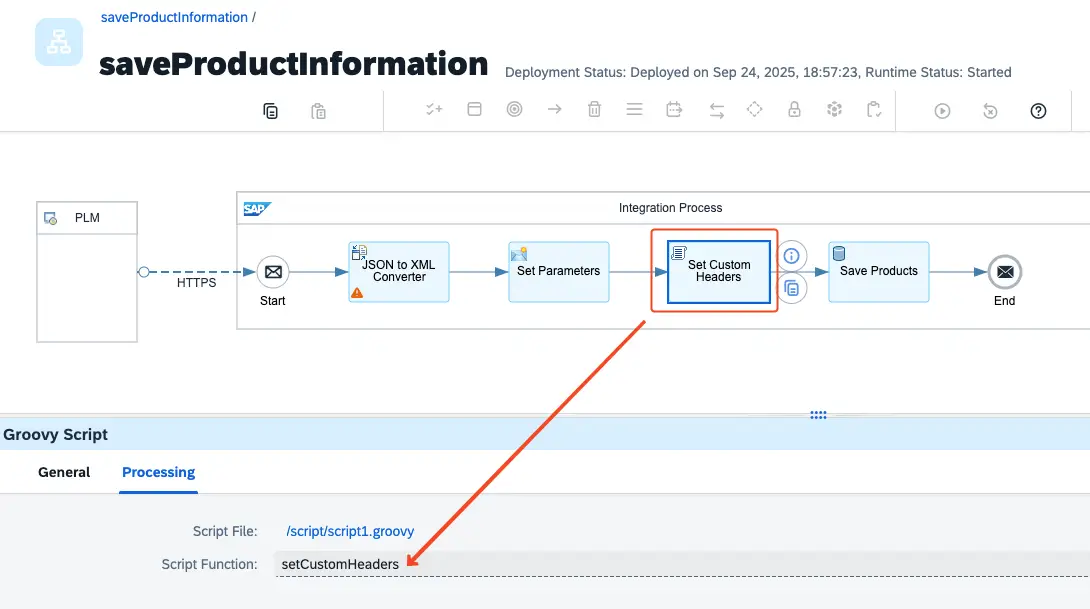
Now, from this Groovy script, we will set a custom header property named “productCategory” with the value of the exchange property “productCategory” that we set earlier using the Content Modifier.

Let’s process another product and see how the custom header property appears in the Message Monitor.
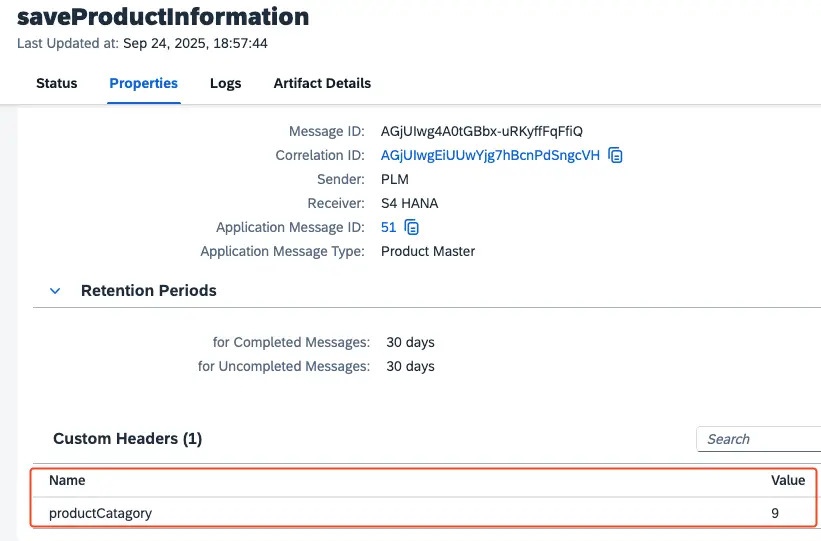
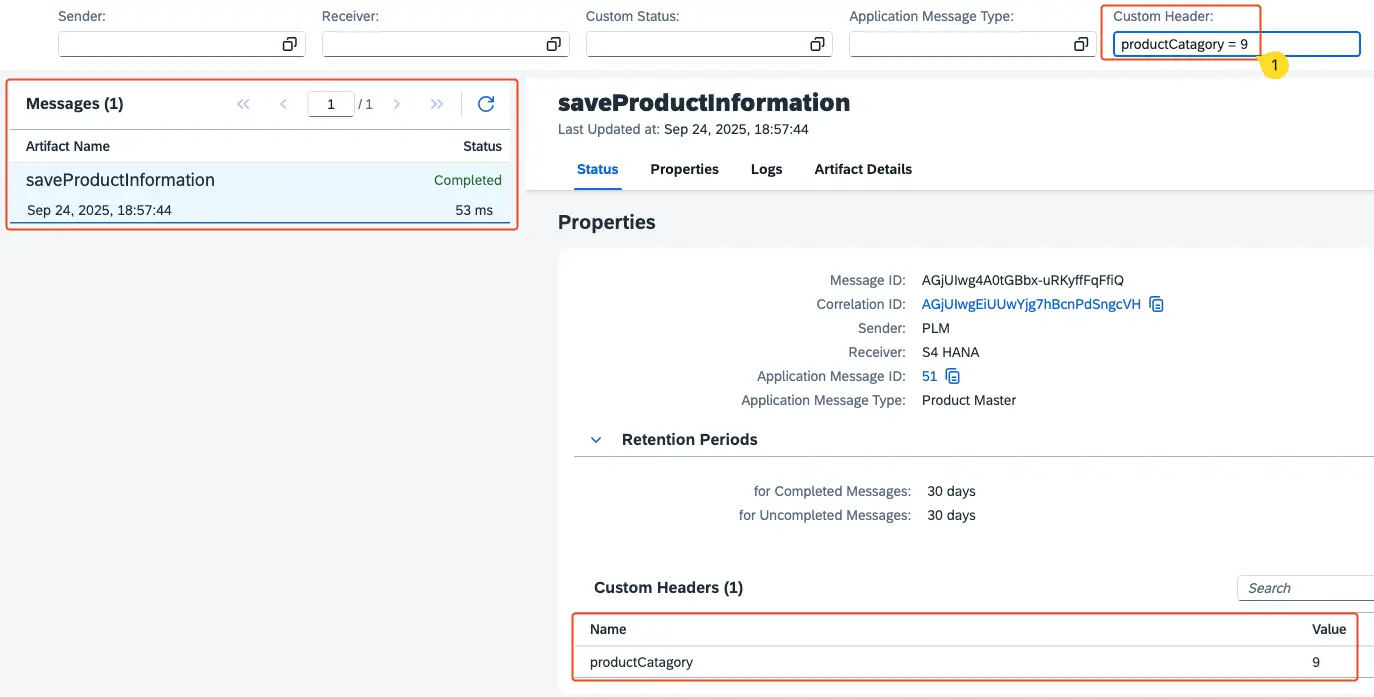
How do we now filter messages in the Integration Suite based on a custom header property?
In this example, let’s filter messages with Category ID 9. To do this, add the Custom Header filter criteria by specifying the header property name and the corresponding value.
To summarise, filtering and monitoring messages in SAP Integration Suite can be challenging when dealing with multiple interfaces and large volumes of data. While standard search parameters like Message ID and Correlation ID provide basic filtering, they are often too technical for business-oriented monitoring. By leveraging standard header parameters such as SAP_ApplicationID, sender system, receiver system, and application type, you can add meaningful business context to your messages and enable more effective filtering in the Message Monitor.
For scenarios requiring additional business-specific criteria, custom header parameters offer a great solution. By extracting values from the message payload and setting them as custom headers using Groovy scripts, you can filter messages based on business attributes, such as Order Number, Invoice Number, Article ID, etc.
This approach transforms the Integration Suite’s Message Monitor into a more intuitive and business-focused tool, allowing for faster filtering of messages, improved monitoring, and more efficient message tracking across your interfaces.

Encode Message Payload to Base64 on CPI!
How to use Base64 message encoder in SAP Integration Suite.
Subscribe for moreMy First Interface on CPI!
Learn how to develop your first iFlow on SAP Integration Suite within 7 minutes!
Subscribe for moreSIGN UP TODAY!
Sign up to receive our monthly newsletter and special deals!